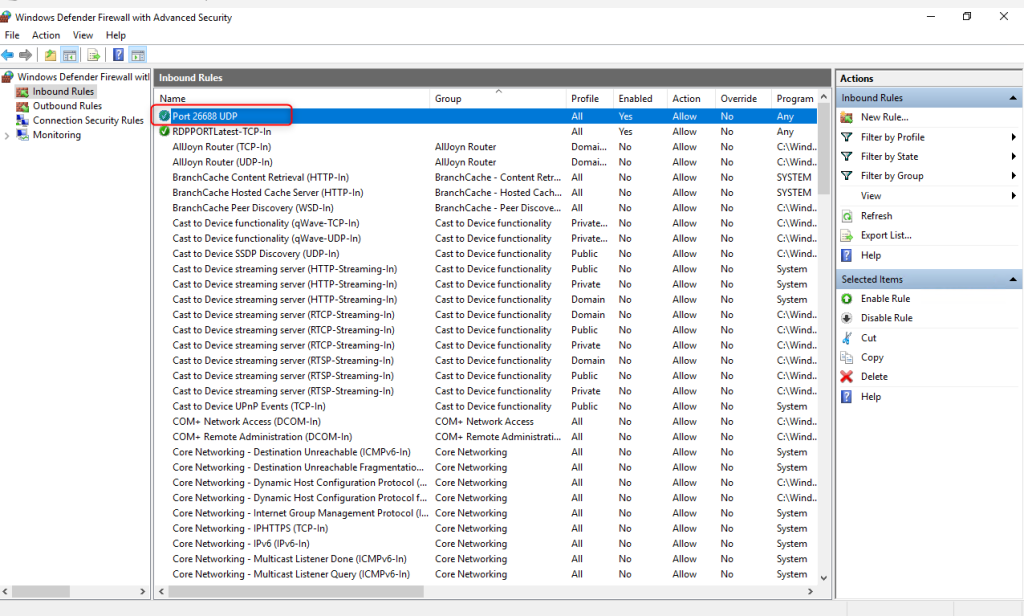
To disable UDP via Firewall Setting, please follow the below steps.
If connecting via port 3389
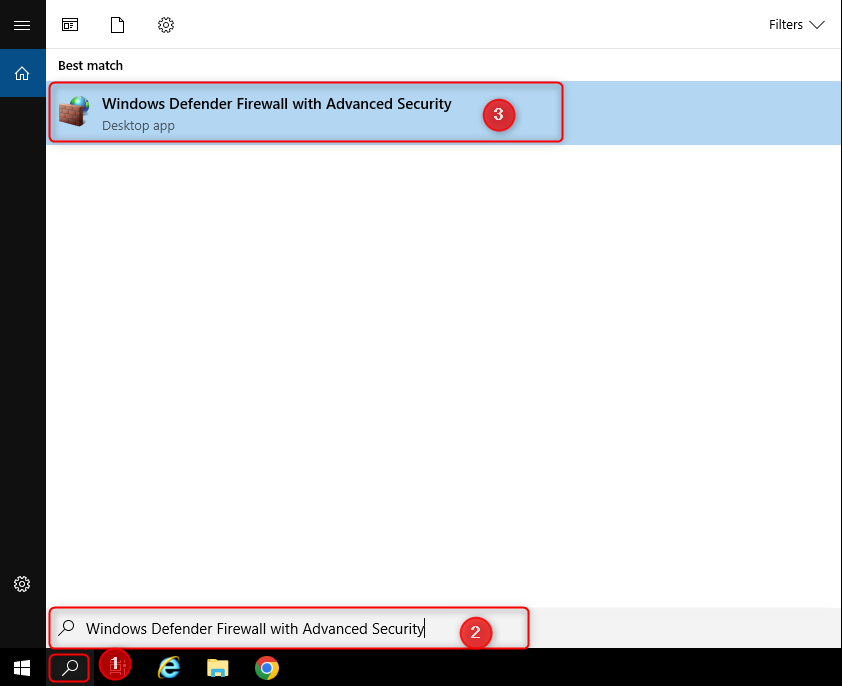
Step 1: Access your server. Search and Open Windows Defender Firewall with Advanced Security
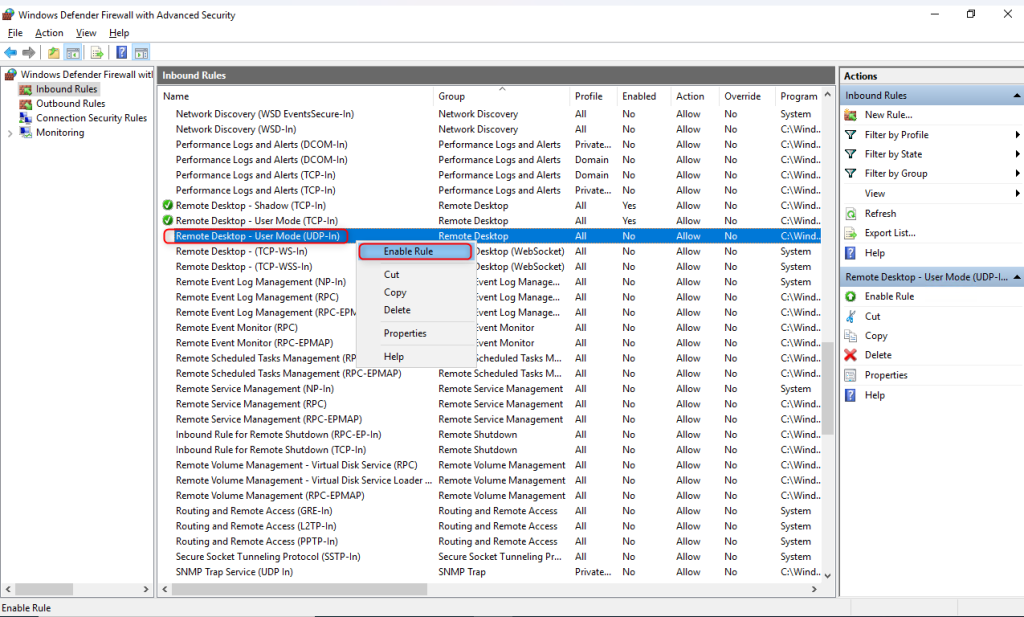
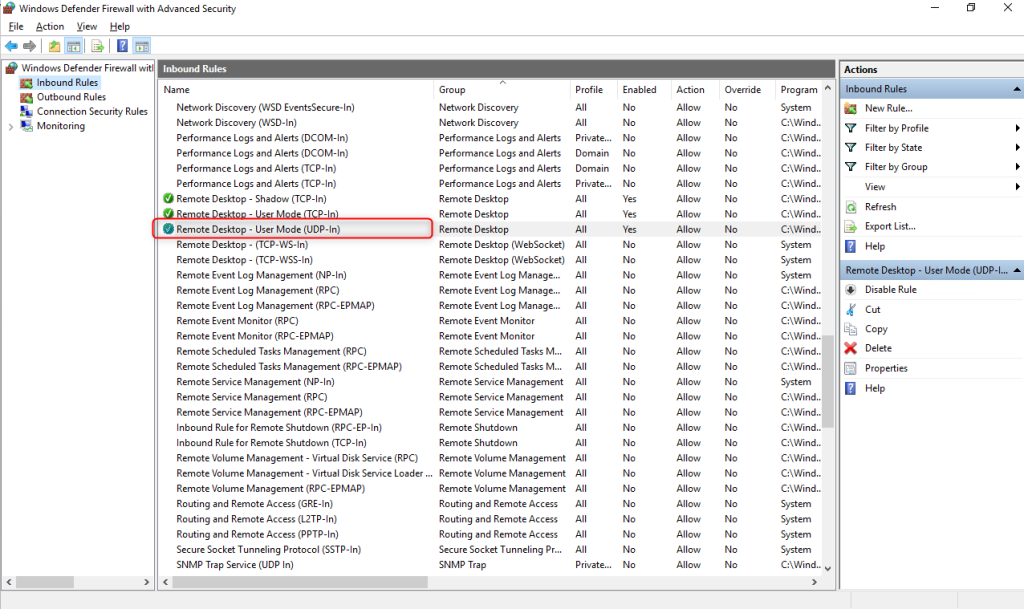
Step 2: Navigate to Inbound Rule and find Remote Desktop – User Mode (UDP-In). Right-click on Remote Desktop – User Mode (UDP-In) and Enable rule
If connecting via port 26688
Step 1: Access your server. Search and Open Windows Defender Firewall with Advanced Security
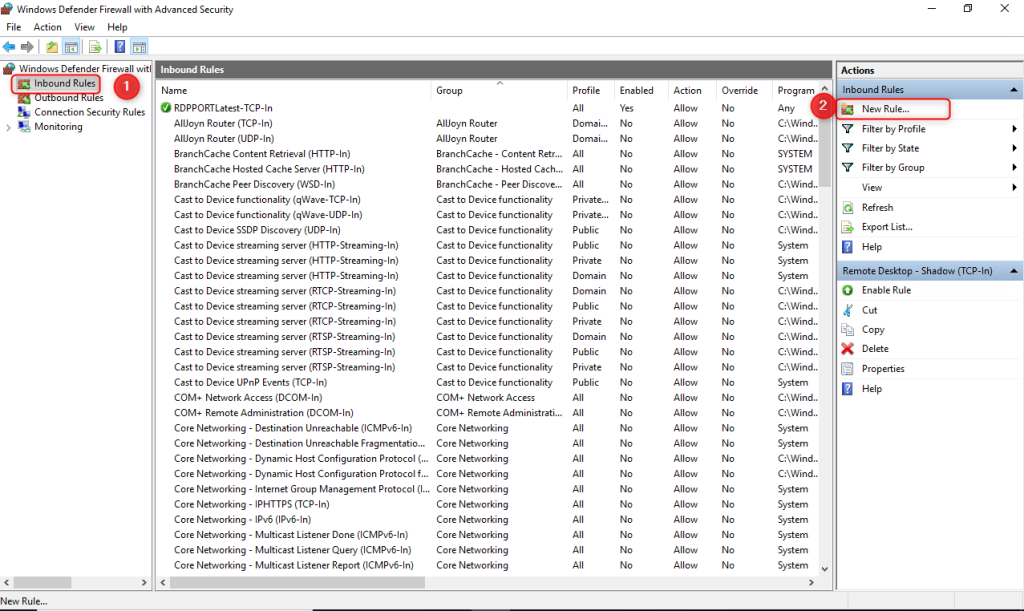
Step 2: Navigate to Inbound Rule and click New Rule
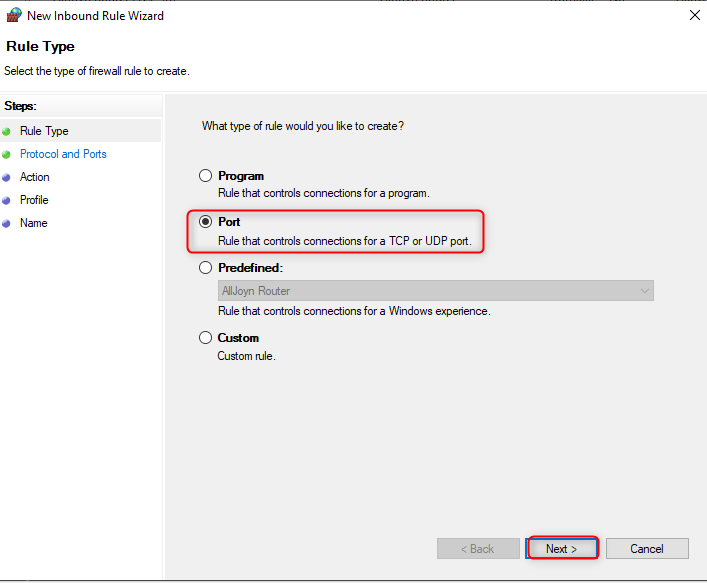
Select Port and click Next
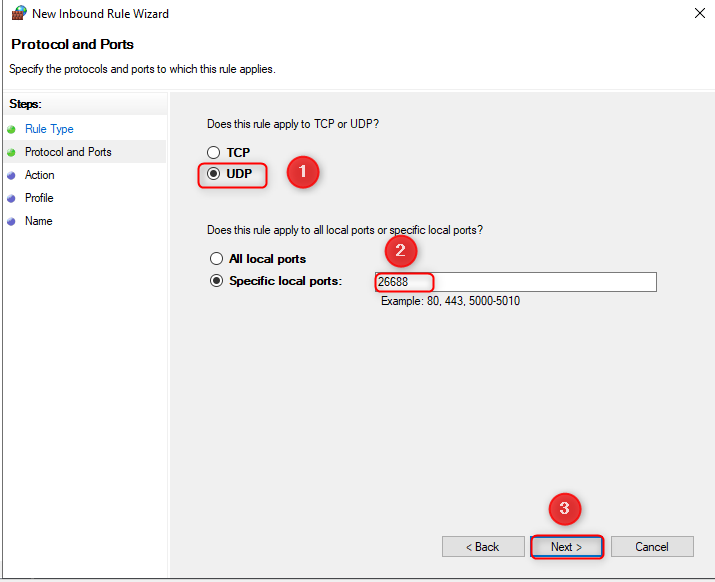
Step 3: Select UDP and enter port 26688
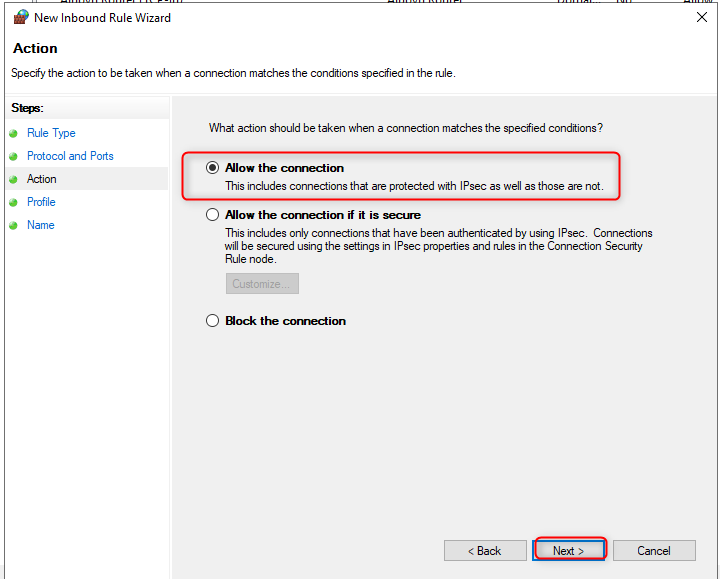
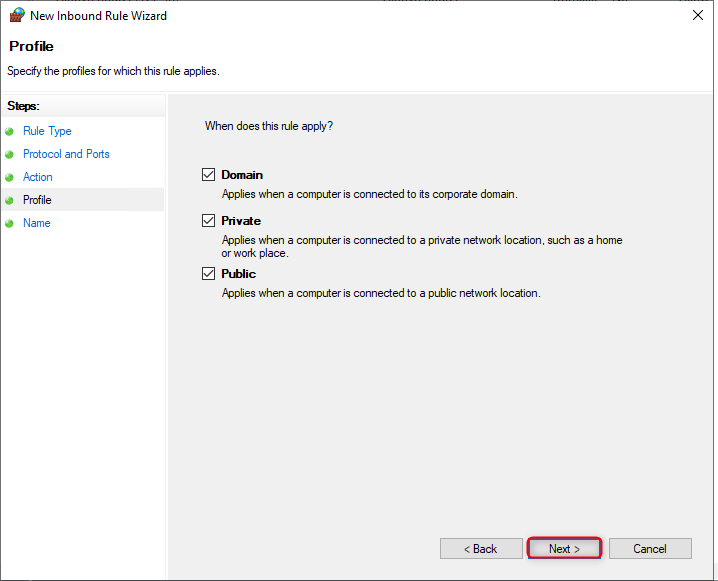
Step 4: Enter your preferred name such as Port 26688 UDP and click Finish
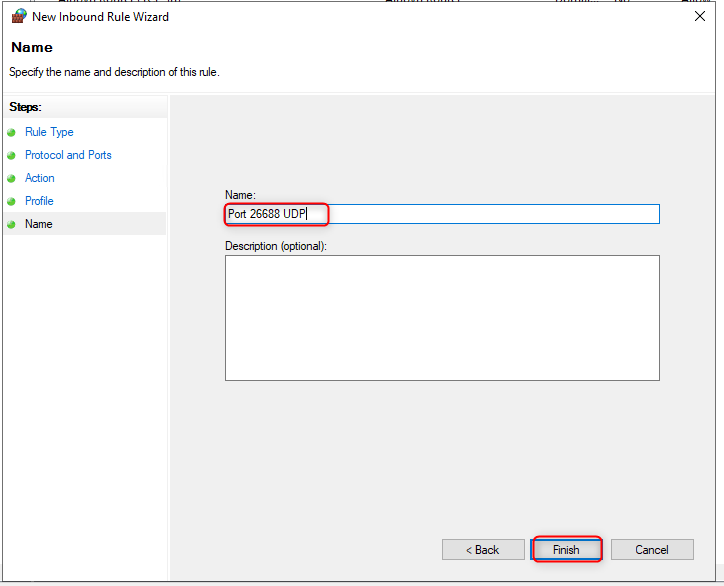
Done. Port 26688 UDP has been created on your firewall