
Hyonix uses Confirmo as our cryptocurrency payment gateway. In rare cases, you may have sent the payment but your Hyonix invoice still shows as Unpaid – for example because the funds were sent on the wrong network, or using the wrong token, or sent to the wrong address, or the payment arrived after the payment window expired, or the transaction simply has not been detected yet.
Because the funds are held by Confirmo (not by Hyonix), these cases must be checked and resolved by Confirmo Support directly. This guide shows you how to open a payment ticket with Confirmo.
Before you contact Confirmo
Please check the following first:
- Wait at least 30–60 minutes after sending. Blockchain confirmations can take time, especially during network congestion. Most “missing” payments are credited automatically once confirmed.
- Open the transaction in your wallet or exchange and make sure it shows as Confirmed / Completed on the blockchain.
- Have the following details ready: your Transaction ID (TXID / hash), the coin, network and amount you sent, and your Hyonix invoice number.
- If possible, take a screenshot of the transaction from your wallet/exchange – you can attach it to the ticket.
Step 1: Go to the Confirmo website
Open https://confirmo.com/ in your browser.
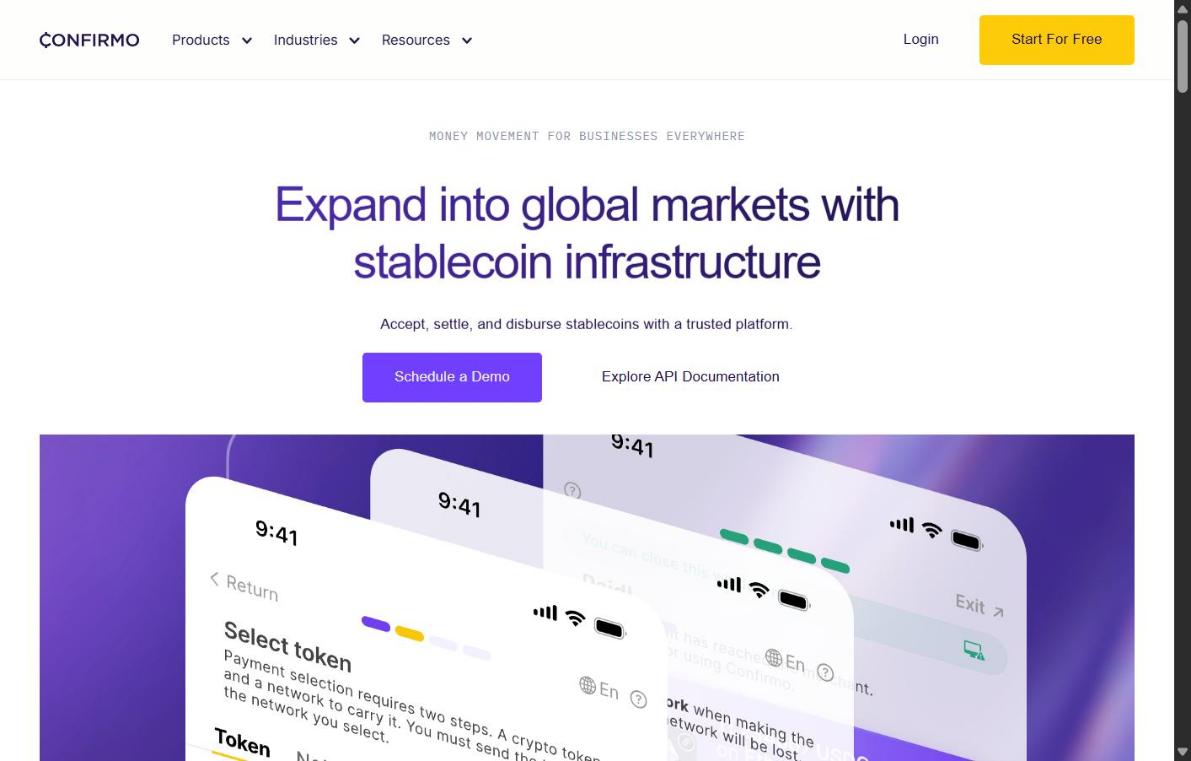
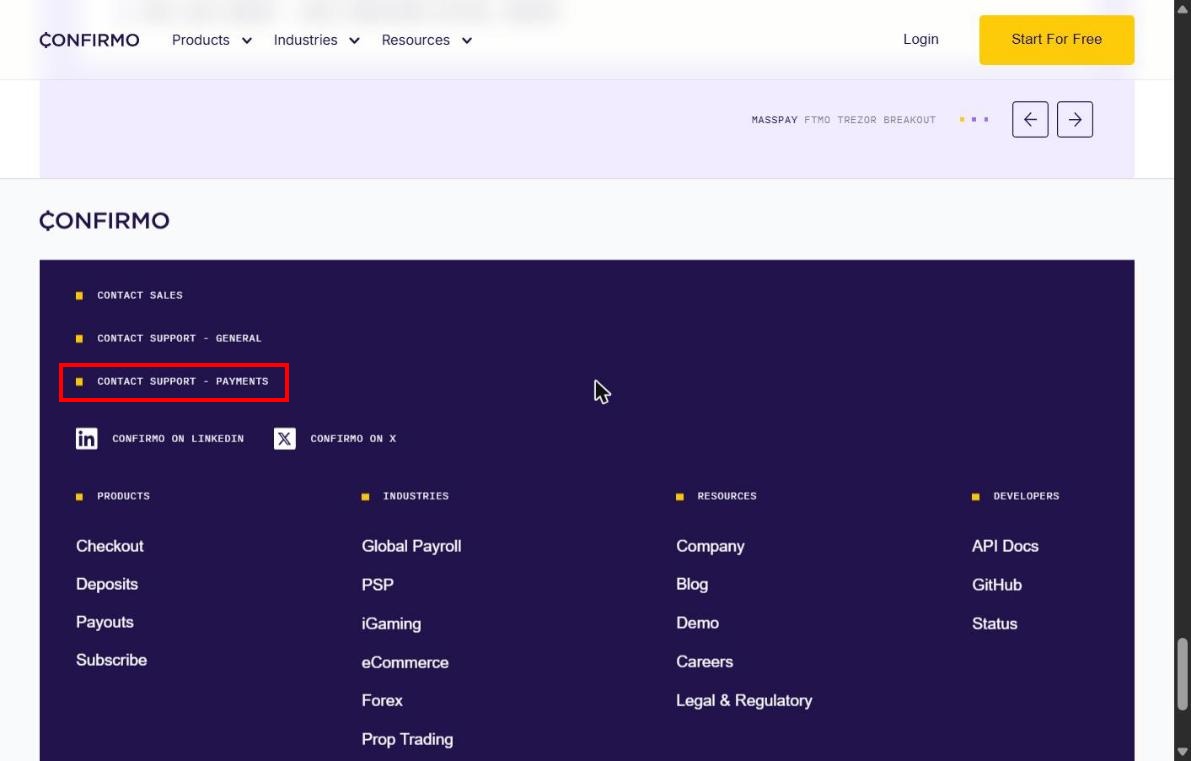
Step 2: Scroll to the bottom and click “Contact support – payments”
Scroll all the way down to the footer of the page. In the dark footer area you will see three contact links. Click CONTACT SUPPORT – PAYMENTS (do not use “Contact Sales” or “Contact support – general”, as those are not handled by the payments team).
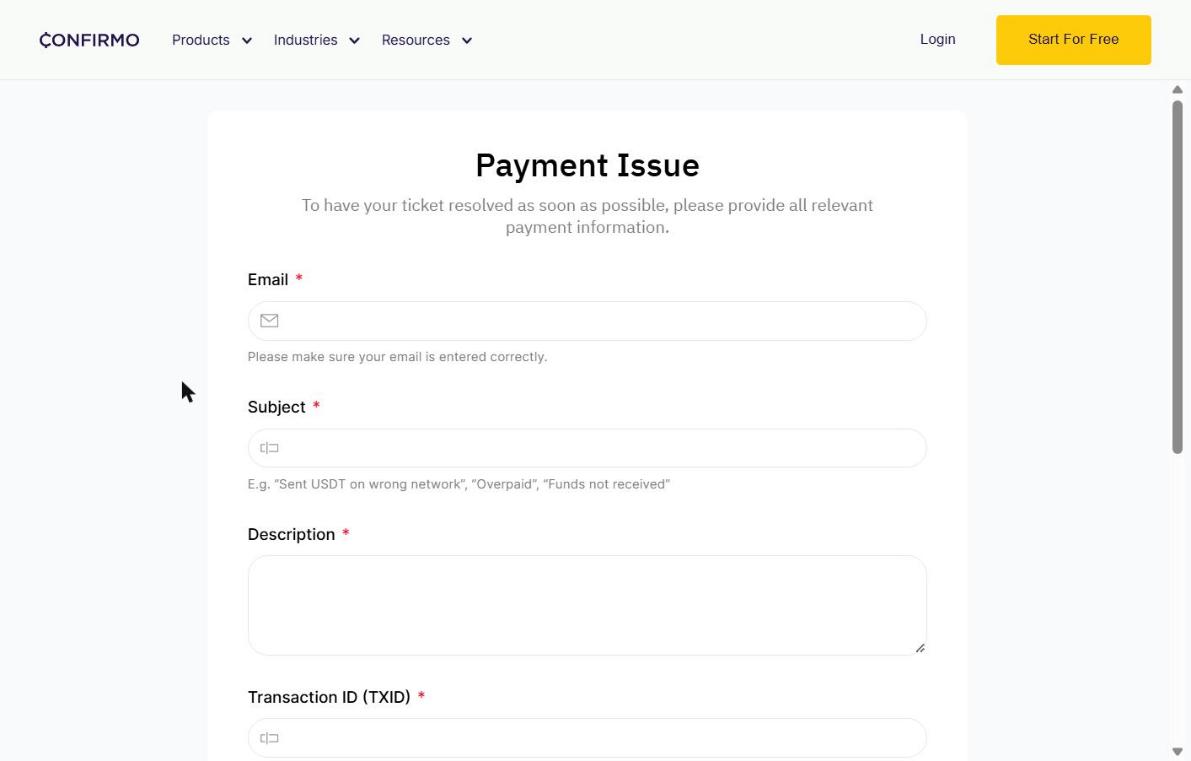
Step 3: Fill in the Payment Issue form
A Payment Issue form will open. Fill in all the required fields (marked with a red asterisk *) as accurately as possible – this is what Confirmo uses to locate your payment.
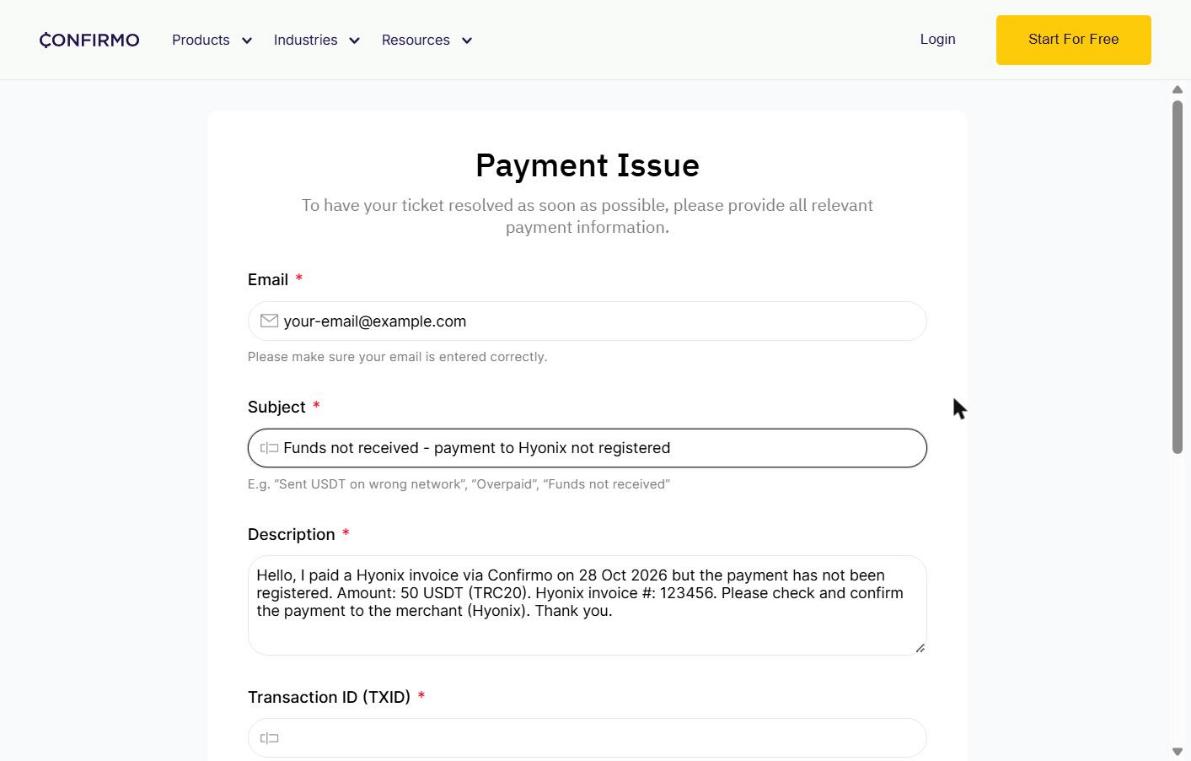
- Email – the email address where you want to receive Confirmo’s reply. Double-check it for typos.
- Subject – a short description of the problem, e.g. “Funds not received – payment not registered”, “Sent USDT on wrong network” or “Underpaid invoice”.
- Description – explain what happened: the wallet adress you sent to, the date you paid, the coin/network and amount you sent. The more detail you provide, the faster it will be resolved.
- Transaction ID (TXID) – the transaction hash from your wallet or exchange history (usually a long string of letters and numbers). This is the most important field.
- File upload (optional) – attach a screenshot of the transaction from your wallet/exchange if you have one.
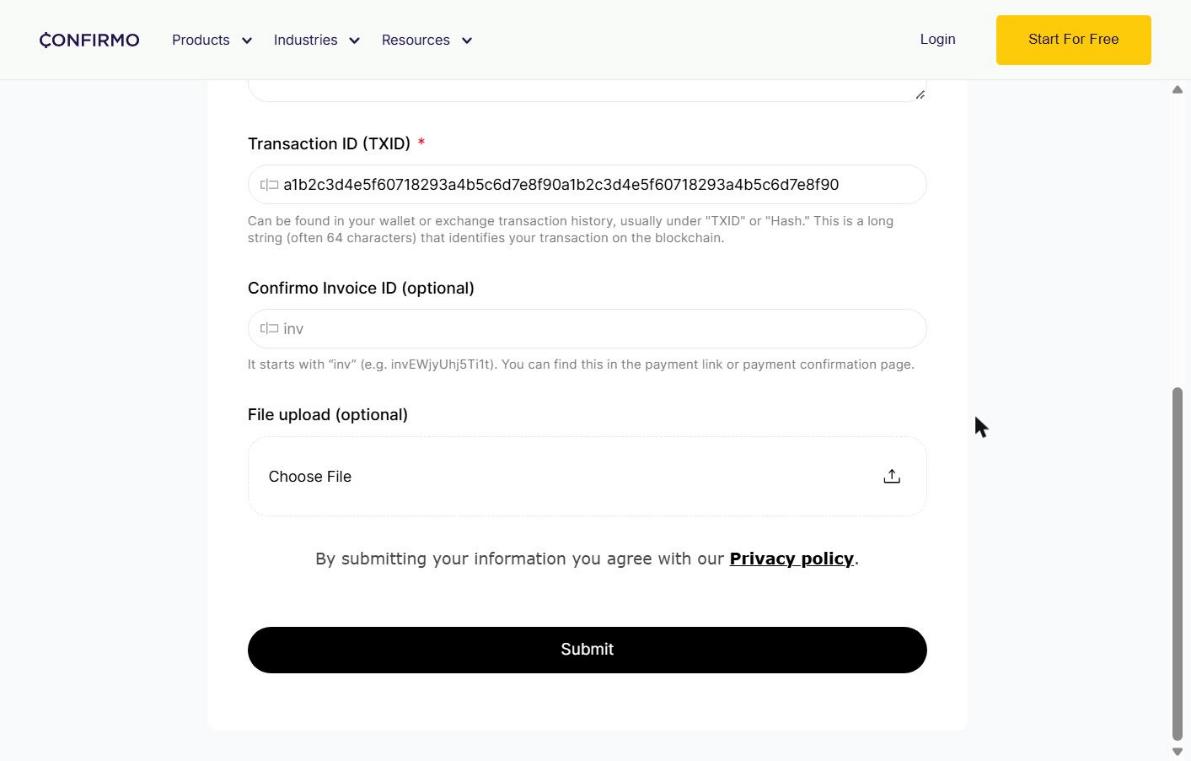
Step 4: Click Submit
Review the information once more, then click the Submit button at the bottom of the form. By submitting, you agree to Confirmo’s Privacy Policy.
Step 5: Check your email for Confirmo’s reply
Confirmo will reply to the email address you entered in the form. Please keep an eye on your inbox (and your Spam / Junk folder) over the next business day or two. Confirmo may ask you for additional details, so please respond to their email promptly.
Depending on the issue, Confirmo will either credit the payment to your Hyonix invoice, or refund the funds to you if the payment cannot be applied (for example, if it was sent on an unsupported network). Once Confirmo confirms the payment, your Hyonix invoice is normally marked as paid automatically.
Need help from Hyonix?
If Confirmo has confirmed that the payment was successfully processed to Hyonix but your invoice is still unpaid after a few hours, please open a ticket with Hyonix Support and include your Hyonix invoice number, the TXID and a copy of Confirmo’s confirmation. We will then check the invoice on our side.